

Jira is excellent at tracking work. It is less excellent at helping you reuse work — specifically, the project structure your team has spent months refining. If your team runs similar projects on a regular cycle, you already know the frustration: a new project kicks off, and someone has to rebuild the same epic, stories, and subtasks from scratch. Again.
This post explains why Jira has no real project template feature, what the common workarounds get wrong, and how to use cloning as a reliable alternative — one that keeps your full issue hierarchy intact, from subtasks all the way up to initiatives and any custom levels above epics.
Why Jira Has No Real Project Templates
Search for “Jira project template” and you will find plenty of results, but not a native solution. Jira offers project templates for creating new projects — boards, workflows, permission schemes — but there is no built-in way to save a set of epics, stories, and subtasks as a reusable template and deploy them into a new project at the click of a button.
This is a genuine gap, and it is widely felt. Teams that deliver similar projects on a regular cadence — agency retainers, client onboarding flows, software release cycles, campaign rollouts — often develop a project structure that works well over time. Initiatives and Goals stand on top, Epics are sized correctly, stories reflect real tasks, subtasks are granular enough to assign without ambiguity. That structure exists in Jira, but it lives inside one specific project. Getting it into the next project is entirely manual.
The result is that teams either rebuild from memory, lean on a shared spreadsheet as a shadow template, or — perhaps worst of all — try Jira’s native Bulk Move feature and discover that it breaks parent-child or time relationships between issues. None of these are real solutions.
The Real Solution: Templating by Cloning
The practical answer to Jira’s missing template feature is to copy Jira project structures using cloning. The idea is straightforward: designate one epic or top level hierarchy element — and its full set of child issues — as your reference plan. When a new project starts, clone that reference plan into the target project. The structure is preserved, the fields carry over, and the team starts with a complete, battle-tested hierarchy rather than a blank board.
The challenge with this approach is execution. Jira allows you to clone individual issues natively, but cloning a hierarchy — an initiative with 10 epics, each with 8 – 12 stories and 54 subtasks, for example — would require dozens of individual clone operations, and the links among all those items would still need to be manually reassigned. That is not a workflow. That is a different kind of manual labour.
This is exactly the problem Epic Clone is built to solve.
How to Create Jira Templates Using Bulk Clone
Epic Clone is a Jira app that lets you bulk clone Jira issue hierarchies in a single operation. Here is the step-by-step workflow:
Step 1: Identify your reference issue
Find the issue that best represents your proven project structure — this could be an epic, but it does not have to be. In enterprise environments running Jira’s Advanced Roadmaps or a custom hierarchy, your reference plan may sit at a higher level: an Initiative, a Goal, or whatever your organisation uses above epics. Epic Clone works at any level of the Jira hierarchy, so you can start the clone from the top of your structure and capture everything beneath it in one operation.
The source does not need to live in a dedicated template project — any existing issue with well-defined child issues can serve as the reference. If you have already run several successful projects, your best reference plan probably exists in Jira right now.
Step 2: Trigger the bulk clone
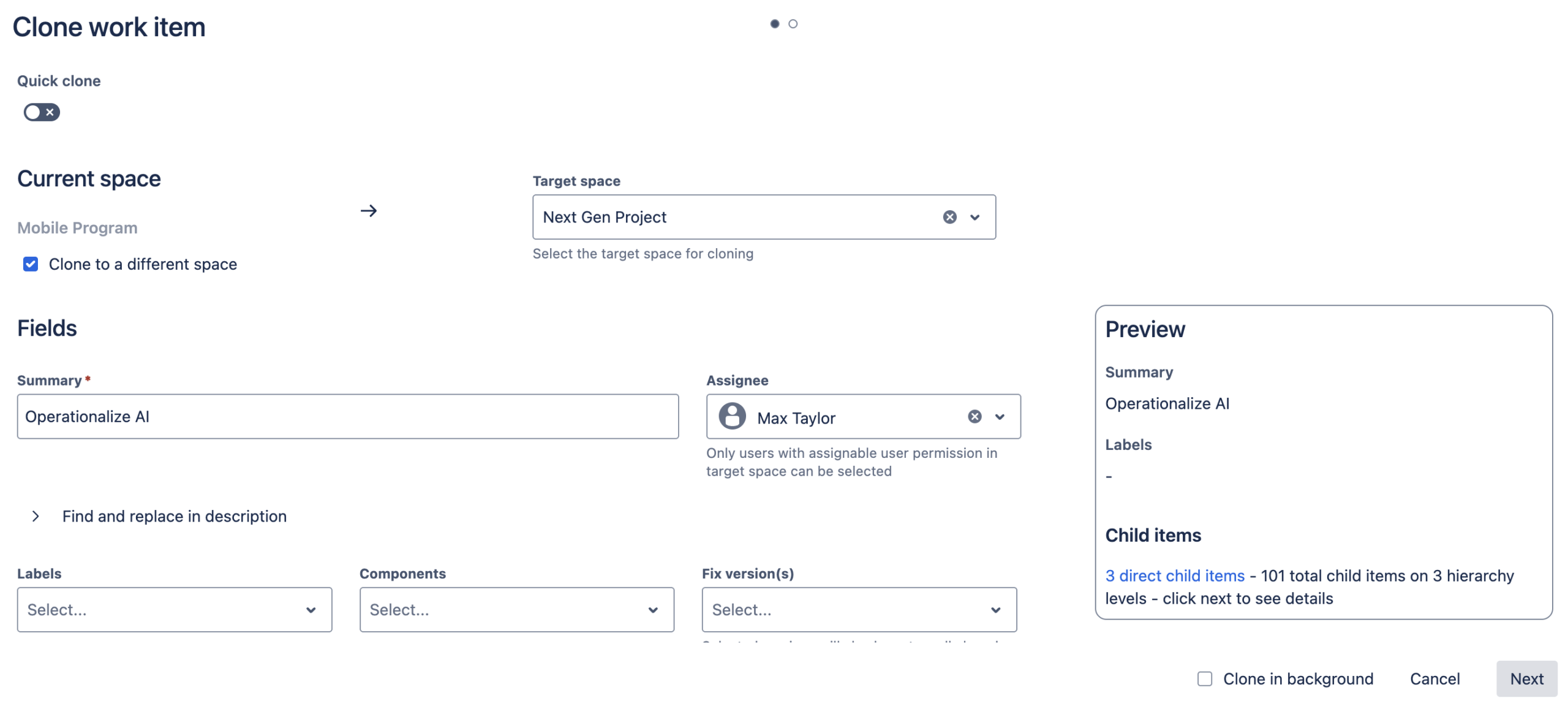
From within your top level hierarchy item, open Epic Clone via the clone work tree action. Choose the target project where the cloned structure should land. Epic Clone handles the complete hierarchy: the epic(s), all linked stories, and all subtasks beneath them.
Step 3: Configure what carries over
Choose which fields to copy — summaries, time estimates, story points and labels are all configurable. You can choose to clear assignees and due dates so the cloned plan starts clean, without stale information from the source project.
Step 4: Review and rename
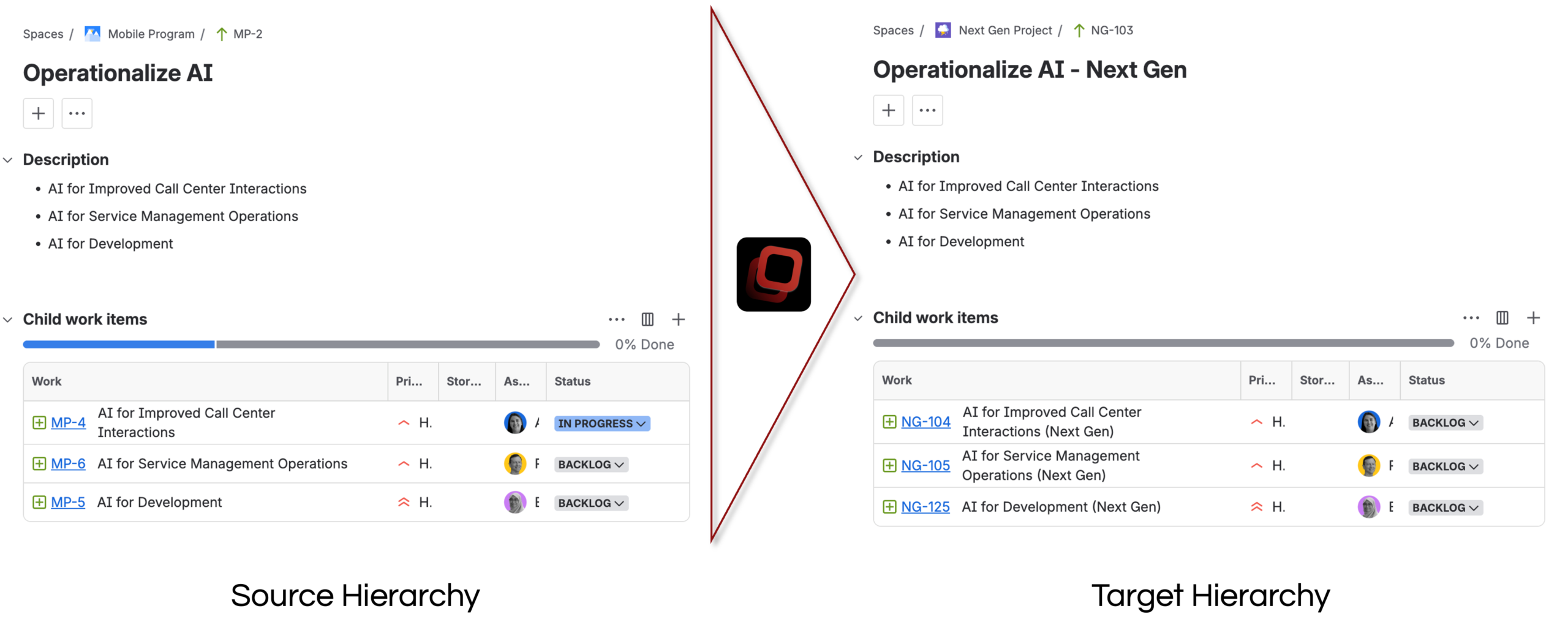
Once the clone completes, the new hierarchy appears in the target project. Set sprint, delivery targets or plan your first steps. The structure is ready; only the project-specific details need updating.
Step 5: Repeat whenever needed
The source epic remains untouched and available for the next project. Clone it again for a different team, a parallel workstream, or the next project cycle. Your reference plan is never consumed by the process.
Keeping Your Full Hierarchy Intact: The Part That Actually Matters
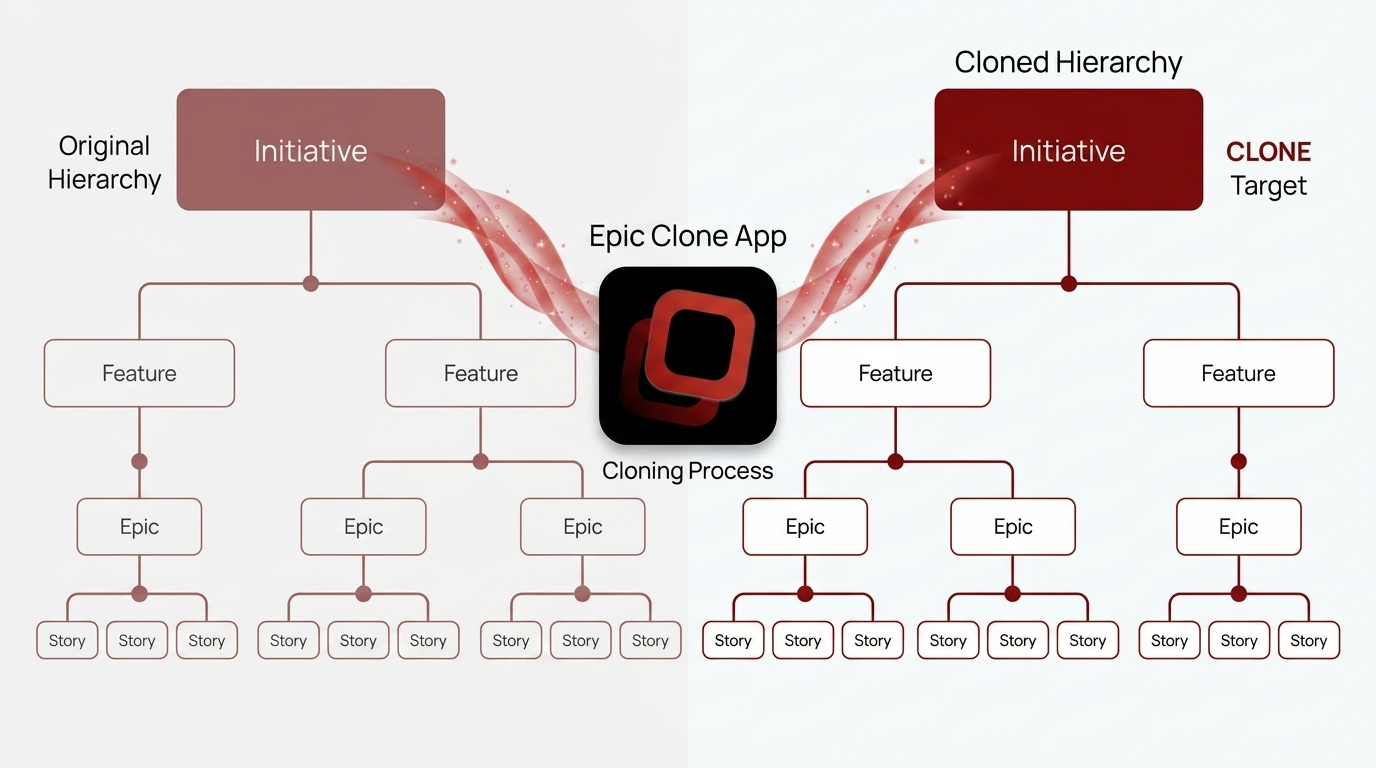
When you clone an issue hierarchy using Epic Clone, all parent-child and cross-item relationships are preserved in the cloned output. Stories remain linked to their epic. Subtasks remain linked to their parent stories. The hierarchy that makes your project plan navigable — and reportable — in Jira comes across intact.
See how Epic Clone handles multi-level hierarchies
This matters even more when your structure extends above the epic level. Many enterprise teams using Jira’s Advanced Roadmaps, or organisations that have configured custom issue type hierarchies, work with Initiatives, Goals, Portfolios, or similar top-level types that group multiple epics under a single programme of work. These structures can be substantial: one Initiative might contain three or four epics, each with a dozen stories and their associated subtasks. Rebuilding that from scratch — or trying to replicate it with native Jira tools — is an exercise in frustration.
Epic Clone handles the full hierarchy in all directions: downward through epics, stories, and subtasks, upward into whatever levels your organisation has configured above epics, and also the time relationship stay intact (one item needs to be finished before another). You can clone an Initiative and get the complete structure beneath it in one operation, with every parent-child and timing link preserved. This is a meaningful differentiator from Jira’s native clone function, which operates on a single issue at a time and does not propagate down — or up — the full hierarchy.
For enterprise teams, this capability shifts cloning from a convenience feature to a genuine programme management tool. A well-maintained Initiative or portfolio template can be cloned at the start of each programme cycle, giving every participating team a consistent, pre-structured starting point across multiple epics simultaneously.
This is also where native Jira bulk operations fall most visibly short. Jira’s Bulk Move and basic clone functions operate at the issue level, not the hierarchy level. Moving or copying a set of issues en masse does not preserve the links between them. You end up with a flat list of issues that need to be manually re-linked — often an error-prone process that introduces the very quality drift you were trying to avoid.
Clone issue hierarchies correctly, and the structure does the work. Clone them incorrectly, and you create a remediation task that can take as long as building the plan from scratch.
Standardising Project Setup Across Teams
There is a broader benefit to this approach that goes beyond individual time savings. When every project of a given type starts from the same cloned structure, project managers are comparing like with like. Retrospectives become more useful because the baseline is consistent. New team members can orient themselves quickly because the structure matches what they were trained on.
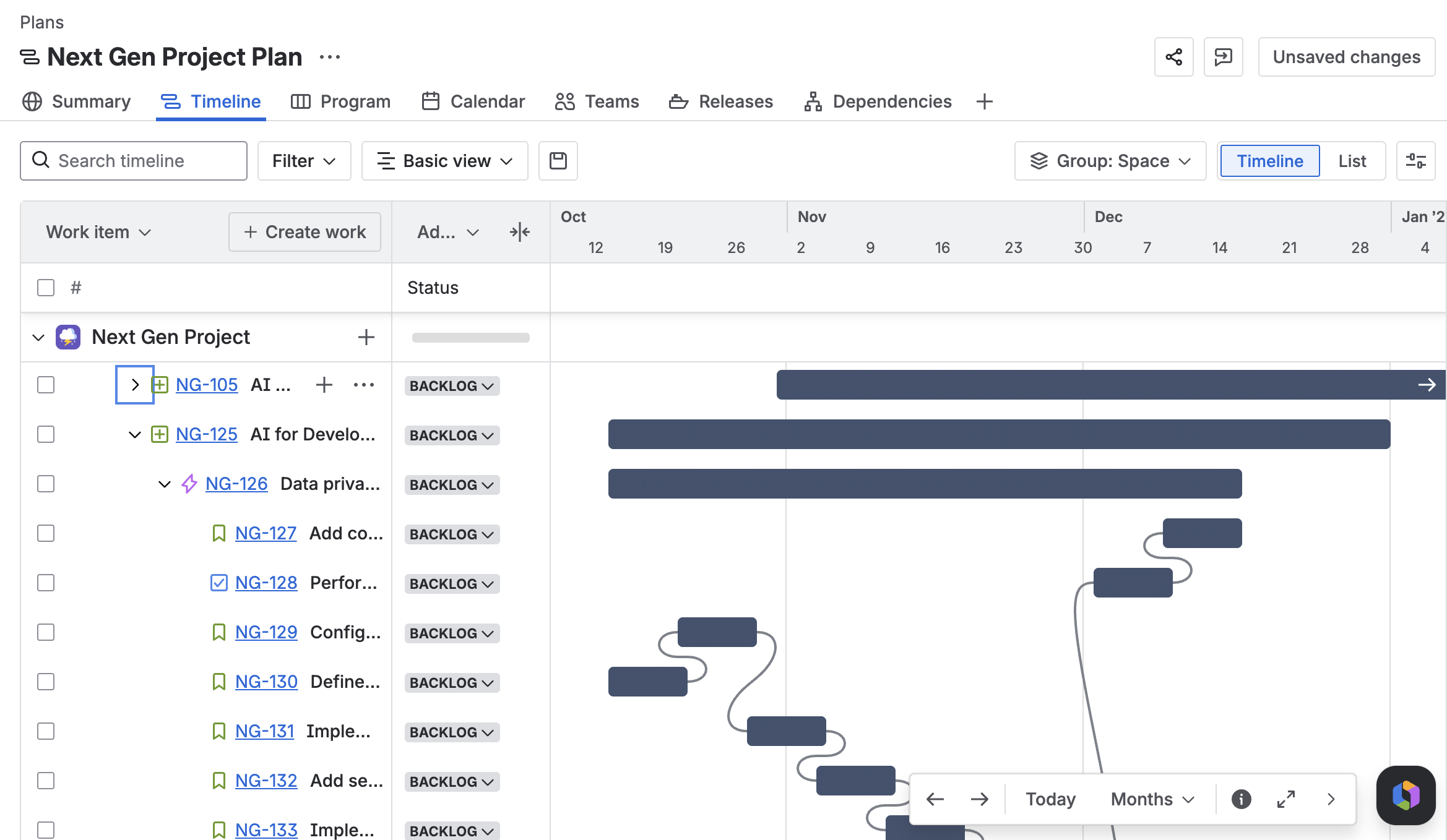
For teams running multiple workstreams in parallel — or organisations with more than one team delivering projects of the same type — a shared reference structure creates a lightweight governance layer without requiring a formal template management process. The reference plan lives in Jira, is maintained like any other hierarchy, and is accessible to anyone with the right project permissions.
Across ten projects per quarter, even a one-hour saving per project setup adds up to a meaningful reduction in administrative overhead. For teams where a full project plan rebuild takes two to three hours, the arithmetic is more compelling still.
Try Epic Clone
Epic Clone is available on the Atlassian Marketplace. If your team delivers similar projects on a regular cycle, it is worth running the calculation: how many hours per quarter go into rebuilding structures that already exist?
Get Epic Clone from the Atlassian Marketplace and start your free trial today!
If you want to see it in action before installing, book a demo now.